
 Login
Login
How to Flatten a Fillable PDF File
Flattening a PDF is not hard and can save you a lot of time if you are sending that PDF to another party. Failure to flatten a PDF can result in a loss of data and a lot of frustration.

To flatten a fillable PDF so your typed entries stay in the file when you fax or email it, use Adobe Acrobat's Print Production → Flatten Preview tool, or Chrome's Print → Save as PDF option — both lock your form fields permanently into the page.
Faxing a PDF is the norm, but not every PDF behaves the same way. Some are just flat files you have to print out, fill out by hand, and then re-scan (a hassle for sure). Then there are PDFs that are "fillable" — they have blocks on the actual digital document where you can type in your responses and have a clean, neat document to send back to whoever you need to. You can also fax the document via our HIPAA-Compliant Cloud Fax service.
The problem is that when you go to fax it or email it, the text you entered often isn't locked into the final document. This can be frustrating, to say the least — now you have to retype it all over again. Flattening the PDF fixes that before you send it.
Flatten your PDF document.
So you have your document all filled out. Now you need to save it and "Flatten" the document. If you have a recent copy of Acrobat you probably already have the document open. You may not have an Acrobat reader or don't want to install it. There are other options for you. Granted it may be less secure but we'll show you a few ways to flatten the document for faxing or emailing.
Flatten your PDF with Adobe Acrobat
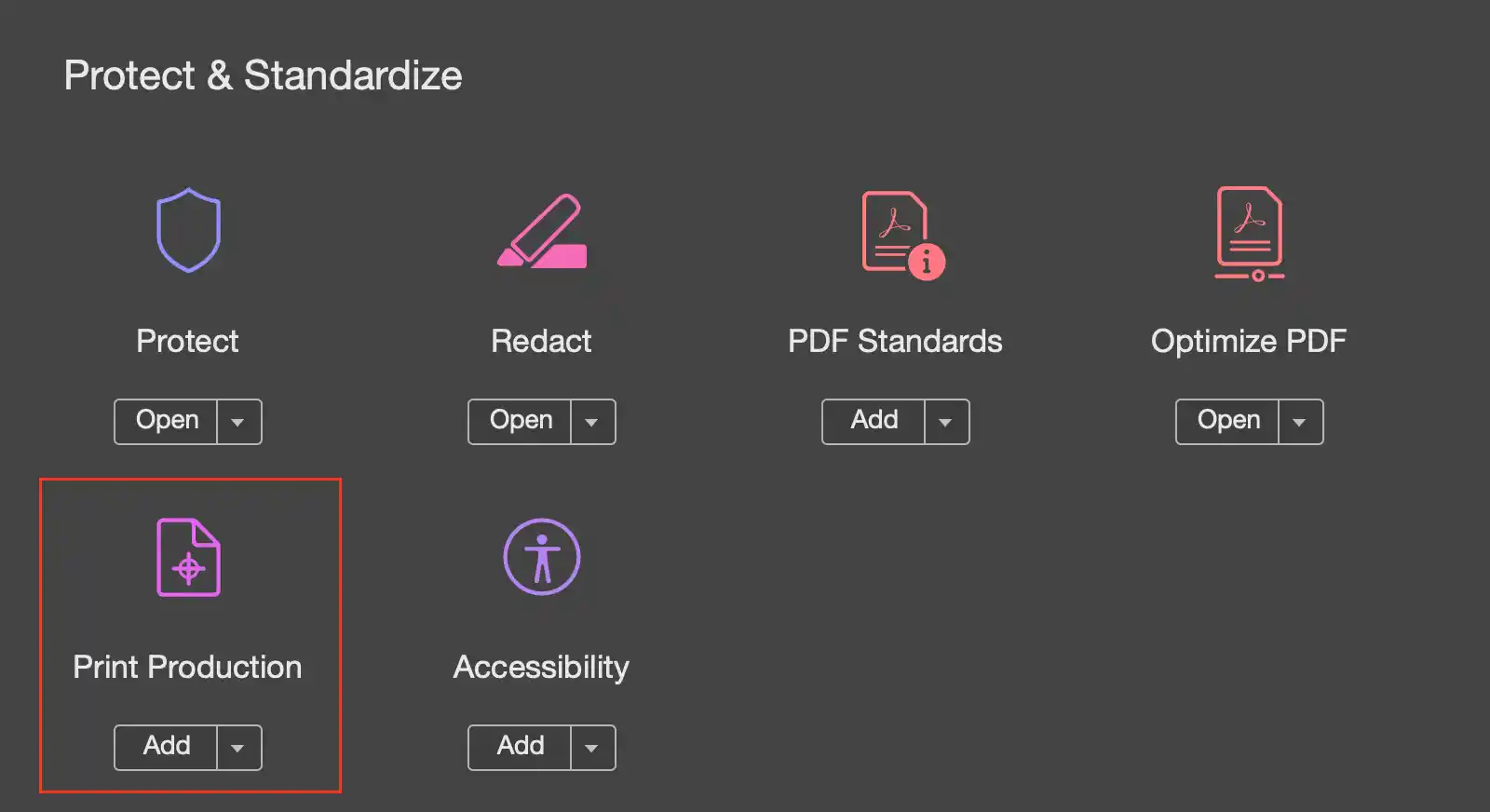
- With your document open and filled out, go to Tools → Print Production.
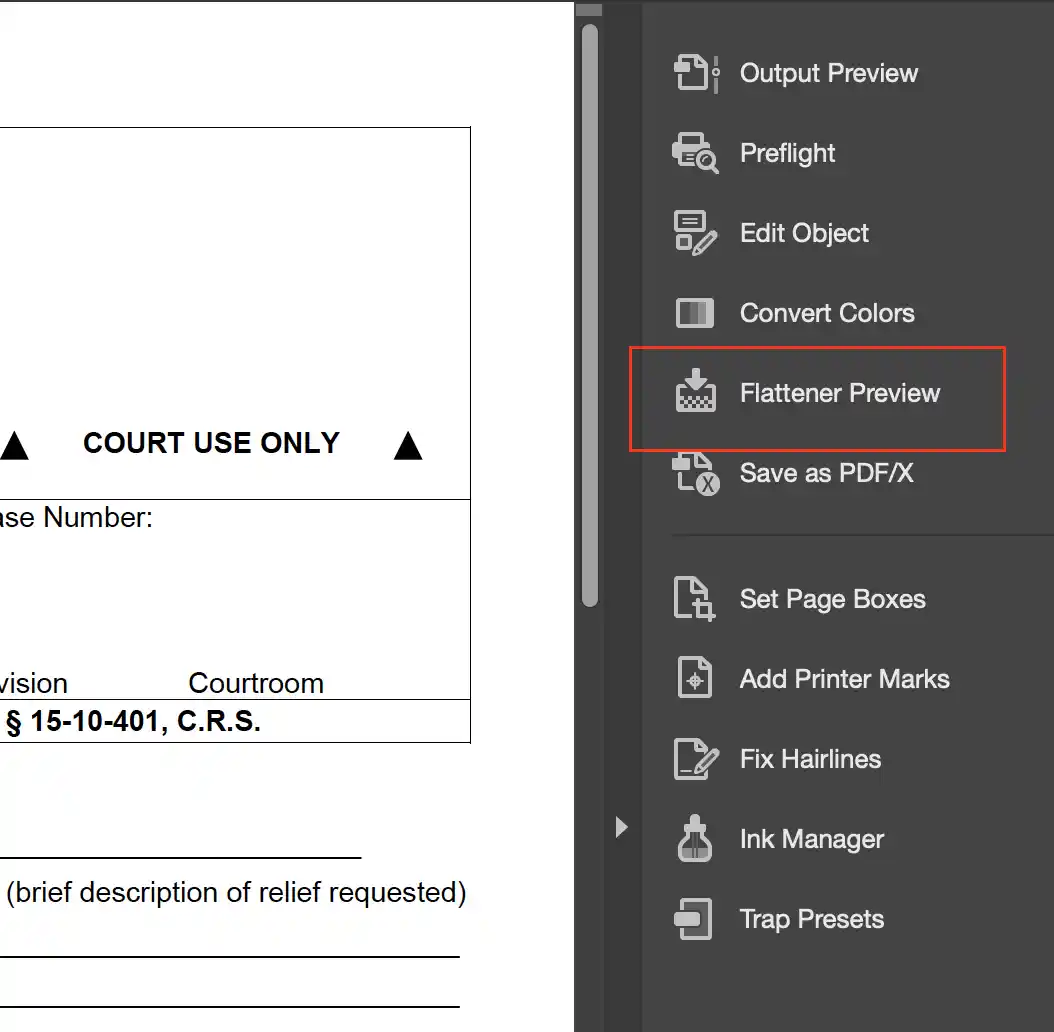
- Click the option on the right called Flatten Preview.
- If everything looks good, select the page range (normally all pages) and click Apply.
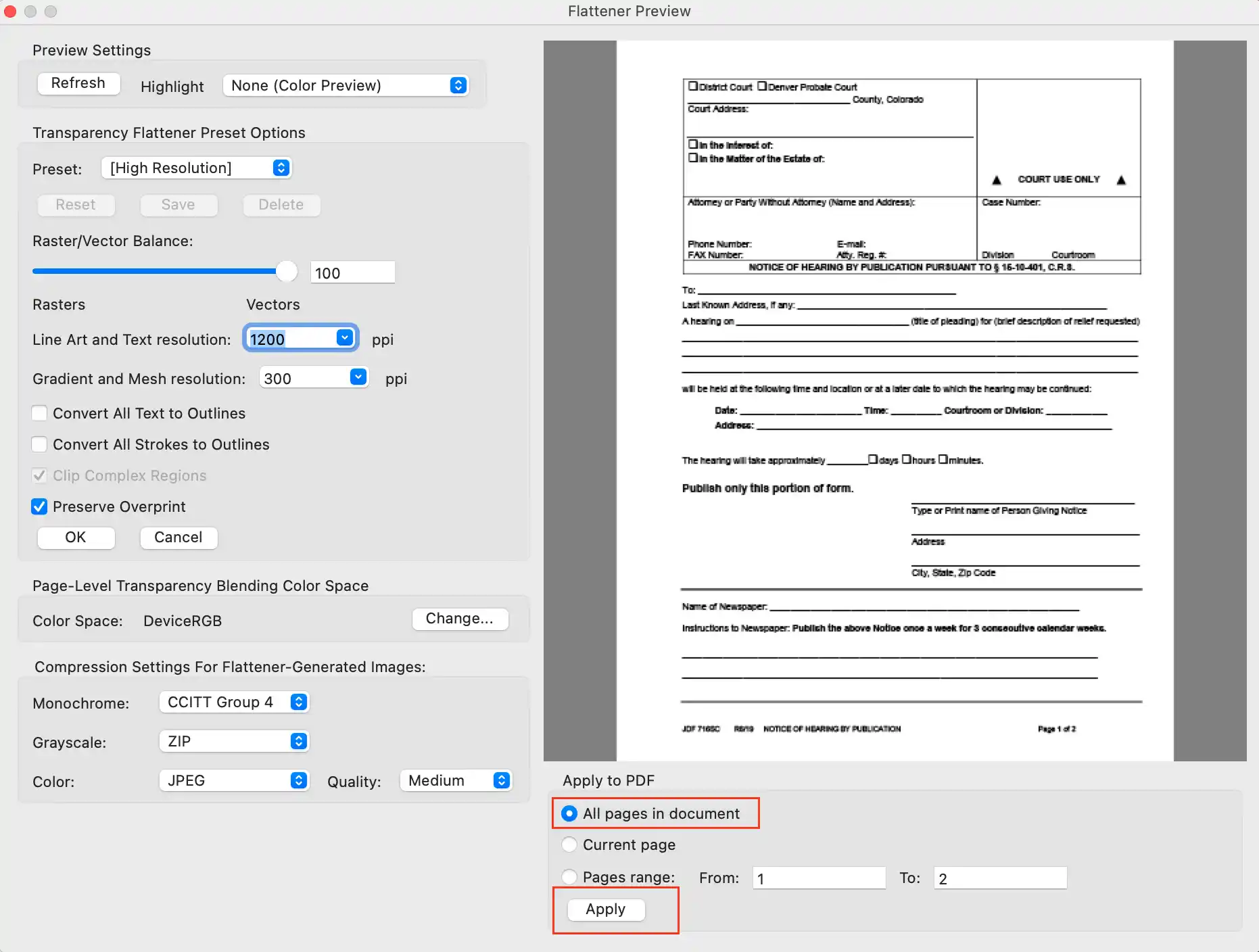
- You'll be prompted that it's irreversible — confirm and save the PDF.
- Now you can fax your PDF document or email it with the content intact.
Flatten a PDF with Google Chrome
This may not be HIPAA compliant. Ask first.
- If you opened the PDF document from a website in the Google Chrome browser, you can edit the document in Chrome, and when you are ready to save it, do the following.
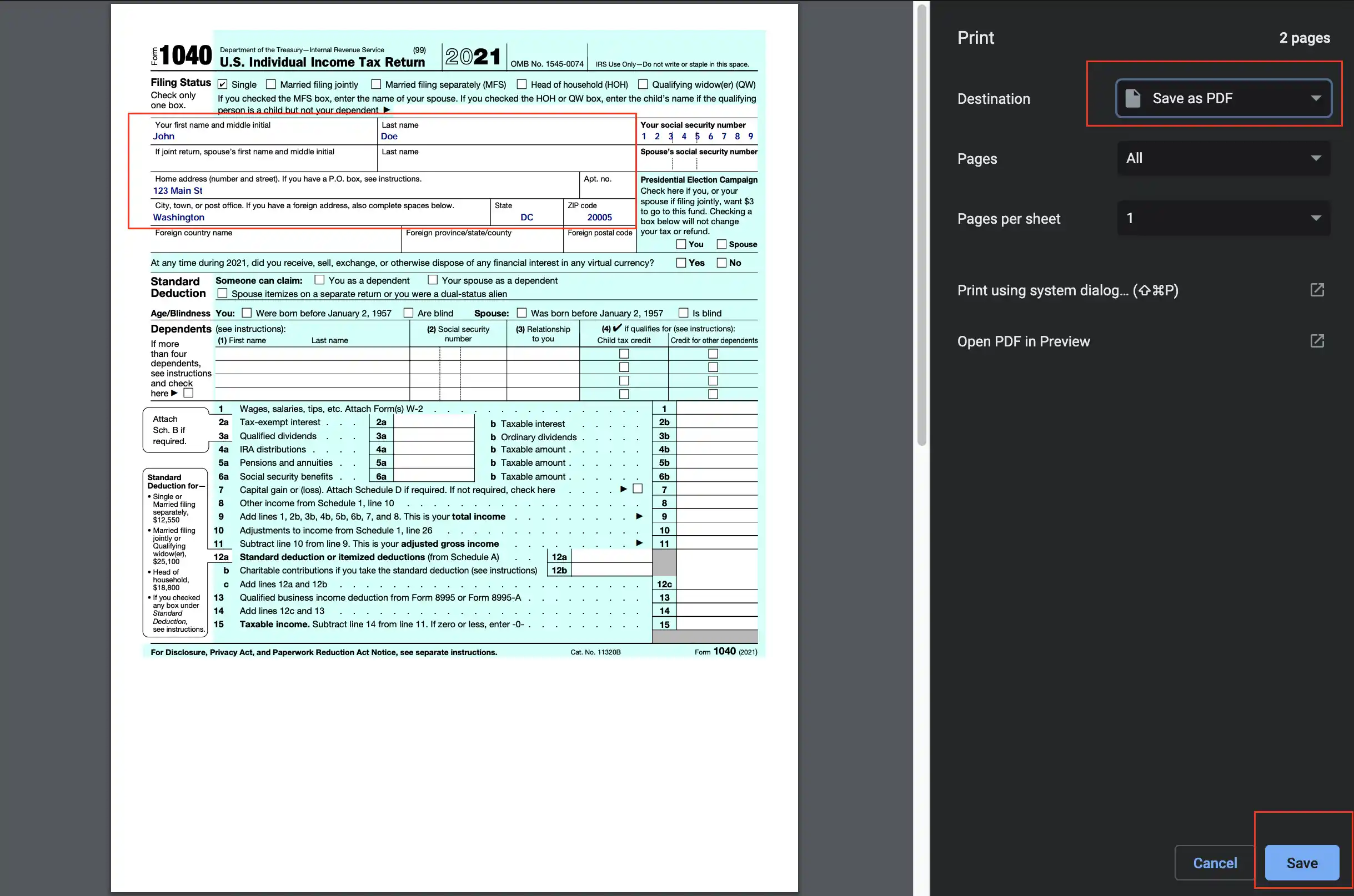
- Click Print and you'll see the preview. Select "Save as PDF" and click "Save".
- You can now fax or email your document flattened.
Note: Your document is flattened but it is not encrypted. Email is inherently insecure. If you are concerned with securely transmitting data fax is a tried-and-true technology that gives you peace of mind.
Need a fax number? Sign up with WestFax today and be faxing in minutes with plans as low as $14.99 a month. That's less than your lunch order today.