
 Login
Login
How to setup Allowed Senders for Email to Fax
Setting up Allowed Senders for Email to Fax is the first step to letting your users or MFPs send faxes through WestFax — quick and easy to configure, one user or several.

Setting Up Allowed Senders
To set up Allowed Senders for Email to Fax, log into home.westfax.com as an admin, open My Account, then Fax to Email Settings, and add each sender's email address to the fax line — quick and easy, whether you're adding one user or several to one or more fax lines.
Here are the steps to set it up. (Note: You will need to be an admin-level user)
- Log into home.westfax.com
- Click on "My Account" on the menu
- Select "Fax to Email Settings"
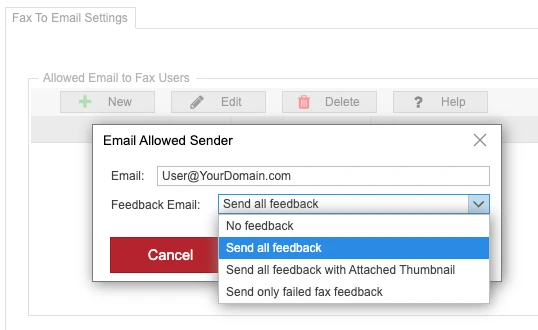
(Note: If you have more than one fax line, make sure you select the correct one you're setting up from the dropdown at the top of the screen) - Click "New" and enter the email address that needs to be able to send faxes
- Select which level of reporting they should receive after sending a fax
- Hit "Save"
Sending a Fax by Email
Once the senders are configured, faxing becomes as straightforward as sending an email to faxnumber@westfax.com (i.e. 2025551212@westfax.com), with the desired document attached. There are also additional options you can put in the subject line, check out this article for more.
If the email to fax successfully goes through, the user will receive a report (if you configured them to). If they get a message back stating "We're sorry. We could not send your fax.", it will contain the reason why the email to fax isn't going through.
Troubleshooting Send Errors
Typically it's one of these two reasons:
- From address not configured for Email to Fax.
Make sure you didn't make any mistakes in the email you entered in the prior steps. - This email failed SPF validation and did not send a fax.
When you get this error, it means that the domain name you are sending from does not have an SPF record setup or the mail server we received the email from wasn't allowed due to your SPF record.
SPF stands for "Sender Policy Framework" and it is an email authentication method that ensures the sending mail server is authorized to originate mail from the email sender's domain. Check out this article on SPF Setup for more information .
Getting Additional Help
If you have questions or need any assistance, feel free to contact us.