
 Login
Login
How to setup and Use the WestFax Print to Fax Driver
Install the WestFax Print to Fax Driver and send HIPAA-compliant faxes from any Windows program that can print — ideal for EHR workflows.

Overview and HIPAA Benefits
To fax-enable any Windows program that can print, install the WestFax Print to Fax Driver — it adds a virtual "WestFax Printer" to your system, so printing a document from Word, a PDF viewer, or your EHR sends it as a fax instead of to paper. The driver is HIPAA-compliant and especially useful in EHR workflows.
Requirements and Installation Steps
Requirements:
- Windows Desktop
- WestFax account
Installation Steps:
- Download the Print to Fax Driver: Visit the WestFax website and download the Print to Fax driver.
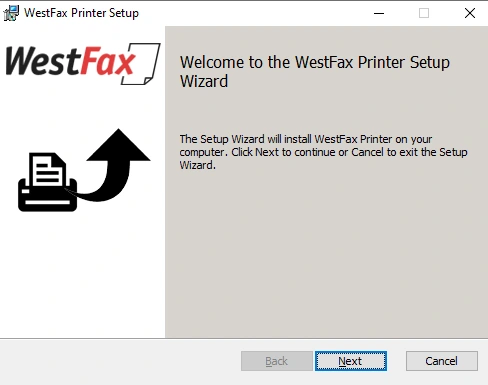
- Install the Driver: Run the downloaded installer. Follow the on-screen instructions to complete the installation. The driver will simulate a system printer on your Windows machine.
Logging In and Composing a Fax
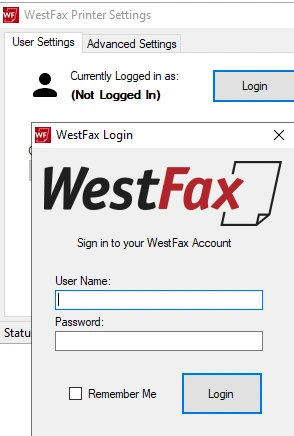
- Login: After installation, the setup will prompt you to log in. Use the same credentials as your WestFax home portal account.
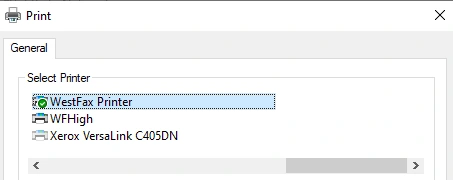
- The WestFax Printer will now appear in your list of printers.
- Open any document in applications like Microsoft Word or a PDF viewer. Go to File -> Print and select the WestFax Printer.
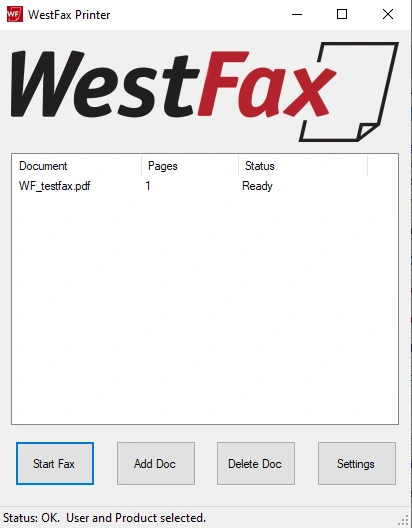
- The document will be sent to the WF Print Driver. hit "Start Fax" to start filling in the details of your fax.
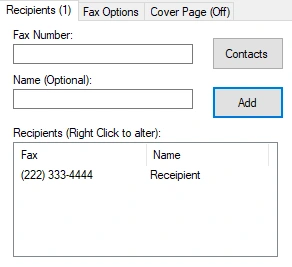
- You can manually enter the recipient’s fax number, or use numbers in your cloud-based address book managed through the home portal.
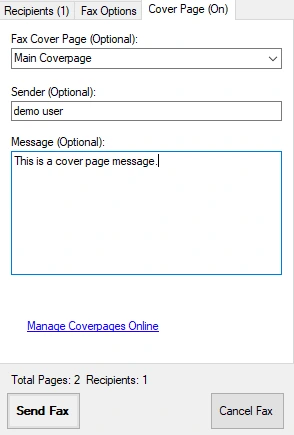
- (Optional) Choose your cover page and personalize the message. You can design and manage different cover pages through the fax portal.
Previewing, Sending, and Admin Notes
- Preview: On the right hand side, you'll see a thumbnail preview of your final fax so you can preview it and ensure the cover page and fax content is correct.
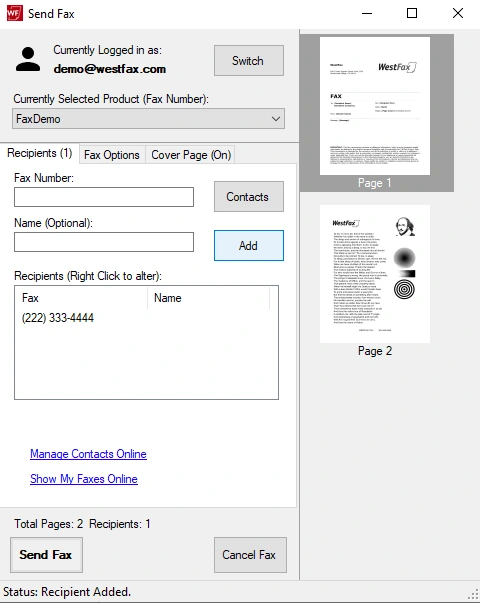
- That's it! After reviewing everything, hit "Send Fax".
Benefits:
- Ease of Use: Faxing becomes as simple as printing a document.
- EHR Integration: Seamlessly works with various EHR platforms, making it versatile for healthcare environments.
- HIPAA Compliant: Ensures that the faxing process meets the required healthcare industry standards.
By following these steps, you can effectively utilize the WestFax Print to Fax Driver to streamline the process of sending faxes from your desktop, integrating effortlessly into your daily workflow, particularly in healthcare settings where faxing remains a crucial method of communication.
Additional Notes for System Administrators: It is advised not to use the Print Driver on a shared terminal server or workstation with multiple users to avoid conflicts and maintain security.